Salesforce Sales Explorer MCP server
The Salesforce Sales Explorer MCP server enables LLMs to work with leads, accounts, contacts, opportunities, tasks, events, and products in Salesforce. It provides tools to search for records, retrieve details, create new entries, and update existing information through natural conversation.
Uses
Use the Salesforce Sales Explorer MCP server when you plan to perform the following actions:
- Search for leads, accounts, contacts, opportunities, tasks, and products
- Retrieve detailed information about specific sales records
- Create new leads, accounts, contacts, opportunities, tasks, and events
- Update existing sales records with new information or status changes
- Add product line items to opportunities
- Execute SOQL queries for custom data retrieval
- Retrieve schema information for Salesforce objects
Example prompts
Use the following example prompts to invoke Salesforce Sales Explorer MCP server tools:
Find all qualified leads from last month.Show me opportunities closing this quarter over $100k.Get details on the Acme Corp account.Create a lead for Jane Smith at TechCo.Update the Acme renewal opportunity to Negotiation stage.Schedule a call with the customer for tomorrow at 2pm.Add the Enterprise subscription product to this opportunity.What are my high-priority tasks due this week?
Salesforce Sales Explorer MCP server tools
The Salesforce Sales Explorer MCP server provides the following tools:
| Tool | Description |
|---|---|
| search_leads | Searches for leads matching specified criteria. |
| search_accounts | Searches for accounts matching specified criteria. |
| search_contacts | Searches for contacts matching specified criteria. |
| search_opportunities | Searches for opportunities matching specified criteria. |
| search_tasks | Searches for tasks matching specified criteria. |
| search_products | Searches for products in the Salesforce product catalog. |
| upsert_lead | Creates a new lead or updates an existing lead. |
| upsert_account | Creates a new account or updates an existing account. |
| upsert_contact | Creates a new contact or updates an existing contact. |
| upsert_opportunity | Creates a new opportunity or updates an existing opportunity. |
| upsert_task | Creates a new task or updates an existing task. |
| upsert_event | Creates a new calendar event or updates an existing event. |
| add_opportunity_line_item | Adds a product line item to an existing opportunity. |
| retrieve_semantic_model | Retrieves schema information for a specified Salesforce object. |
| execute_soql_query | Executes SOQL queries in Salesforce. |
Install the Salesforce Sales Explorer MCP server
Complete the following steps to install a prebuilt MCP server to your project:
Sign in to your Workato account.
Go to AI Hub > MCP servers.
Click + Create MCP server.
Go to the Start with pre-built MCP Servers using your connected apps section and select the prebuilt MCP server you plan to use.
Click Use this server.
Provide a name for your MCP server in the Server name field.
Use the Location drop-down menu to select the project for the MCP server.
Go to the Connections section and connect to your app account.
Select the connection type you plan to use for the MCP server template.
- User's connection: MCP server tools perform actions based on the identity and permissions of the user who connects to the application. Users authenticate with their own credentials to execute the skill.
- Your connection: This option uses the connection established by the recipe builder and follows the same principles as normal app connections.
 Select your connection type
VERIFIED USER ACCESS AUTHENTICATION REQUIREMENTS
Only app connections that use OAuth 2.0 authorization code grant are available for user's connection. Refer to Verified user access for more information.
Complete the app-specific connection setup steps in the following section.
Salesforce connection setup
View Salesforce connection setup steps
Workato supports OAuth 2.0 authentication and JWT bearer authentication connections for Salesforce Sales Explorer.
OAuth 2.0 authentication
View OAuth 2.0 authentication steps
Complete the following steps to connect to Salesforce using OAuth 2.0 authentication:
As of early September 2025, Salesforce restricts the use of uninstalled Salesforce Connected Apps. Refer to OAuth restrictions for required actions if you encounter errors when you create a new connection. These steps are required for all new Salesforce connections starting September 17, 2025.
Click Create > Connection or press C twice.
Search for and select Salesforce on the New connection page.
Provide a name for your connection in the Connection name field.
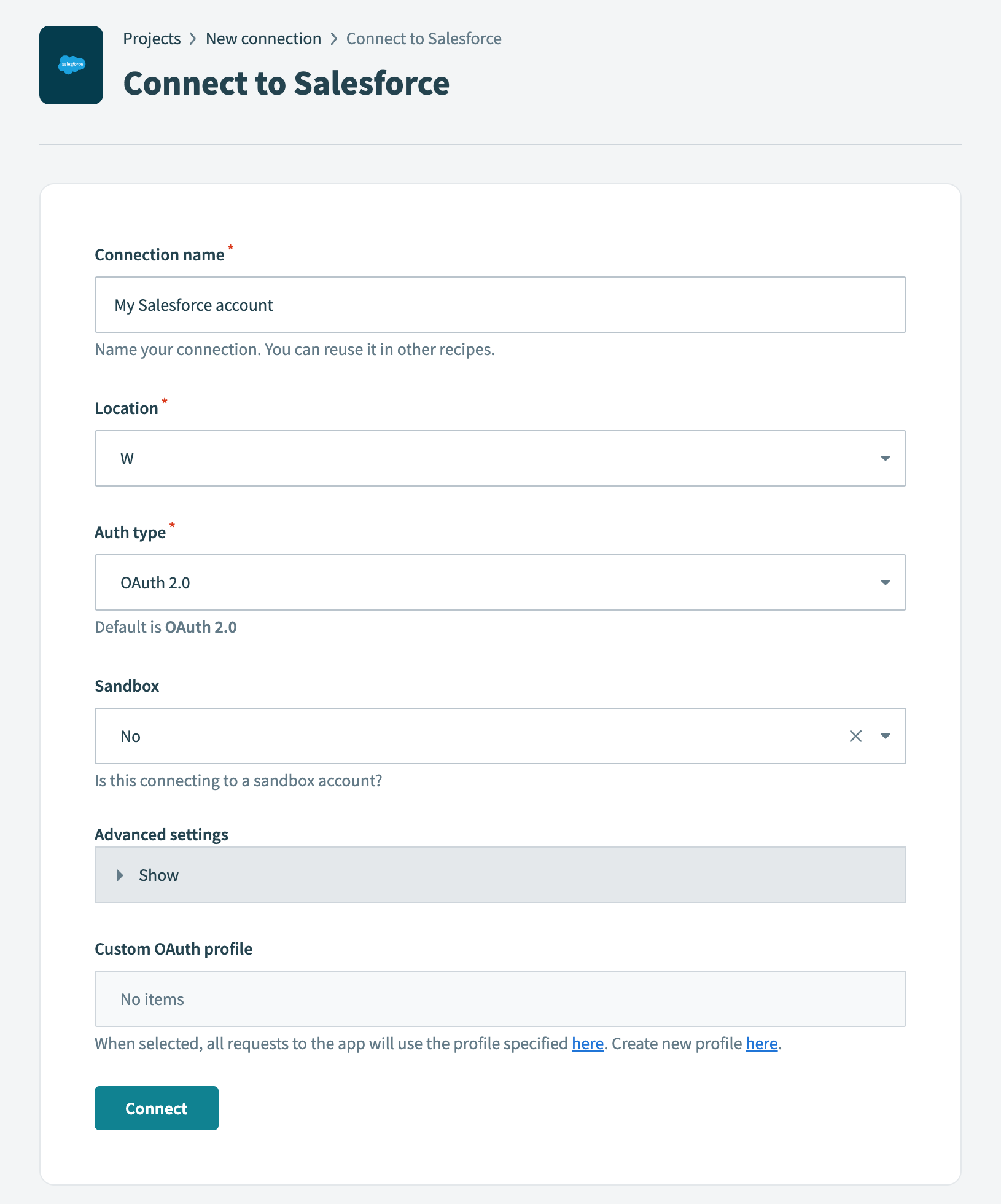 OAuth2.0 Salesforce connection setup
Use the Location drop-down menu to select the project where you plan to store the connection.
Use the Auth type drop-down menu to select OAuth 2.0 (Authorization Code Grant) as the authentication method.
Use the Sandbox drop-down menu to specify whether the Salesforce account is a sandbox account.
Optional. Expand Advanced settings to configure advanced connection options:
Optional. Enter the URL to your Salesforce community's custom domain in the Organization/community custom domain URL field. This is required for community connections with unique domains.
Optional. Use the Requested permissions drop-down menu to select permissions to request for this connection. Defaults to full (all permissions) if left blank. Workato always requests the minimum permissions (basic info, manage data and make requests at any time).
Optional. Use the Verified user access configuration section to configure custom auth for personal connections. Refer to the Runtime user connection documentation for more information.
Optional. Use the Custom OAuth profile drop-down menu to select a custom OAuth profile for your connection. Refer to the Salesforce custom OAuth documentation for more information.
Click Connect.
Optional. Complete the following steps to connect to a Salesforce organization with a custom domain:
Click Use Custom Domain in the sign-in modal.
Enter your Custom domain, then click Continue.
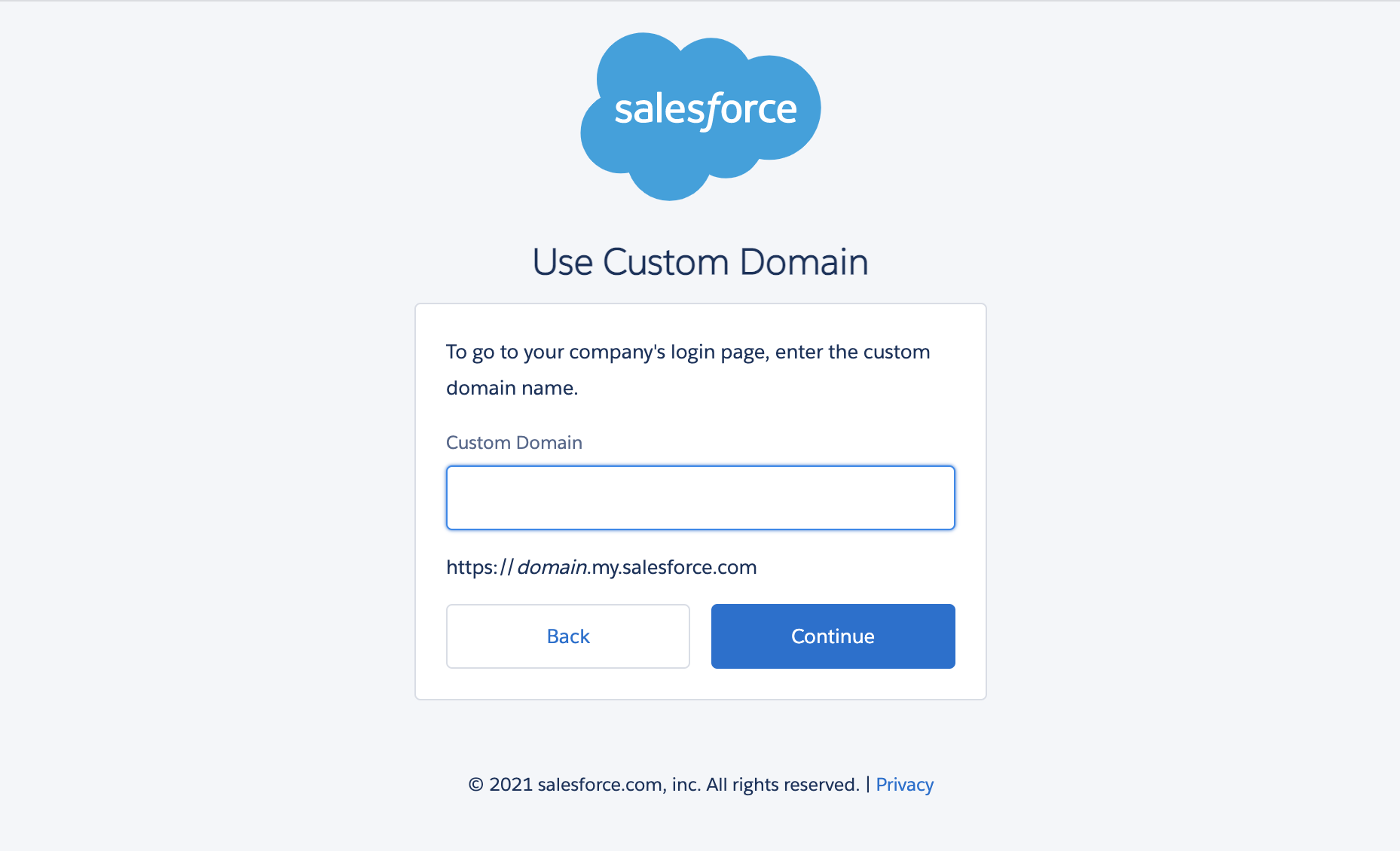 Enter your Custom domain.
Enter your Salesforce Username and Password.
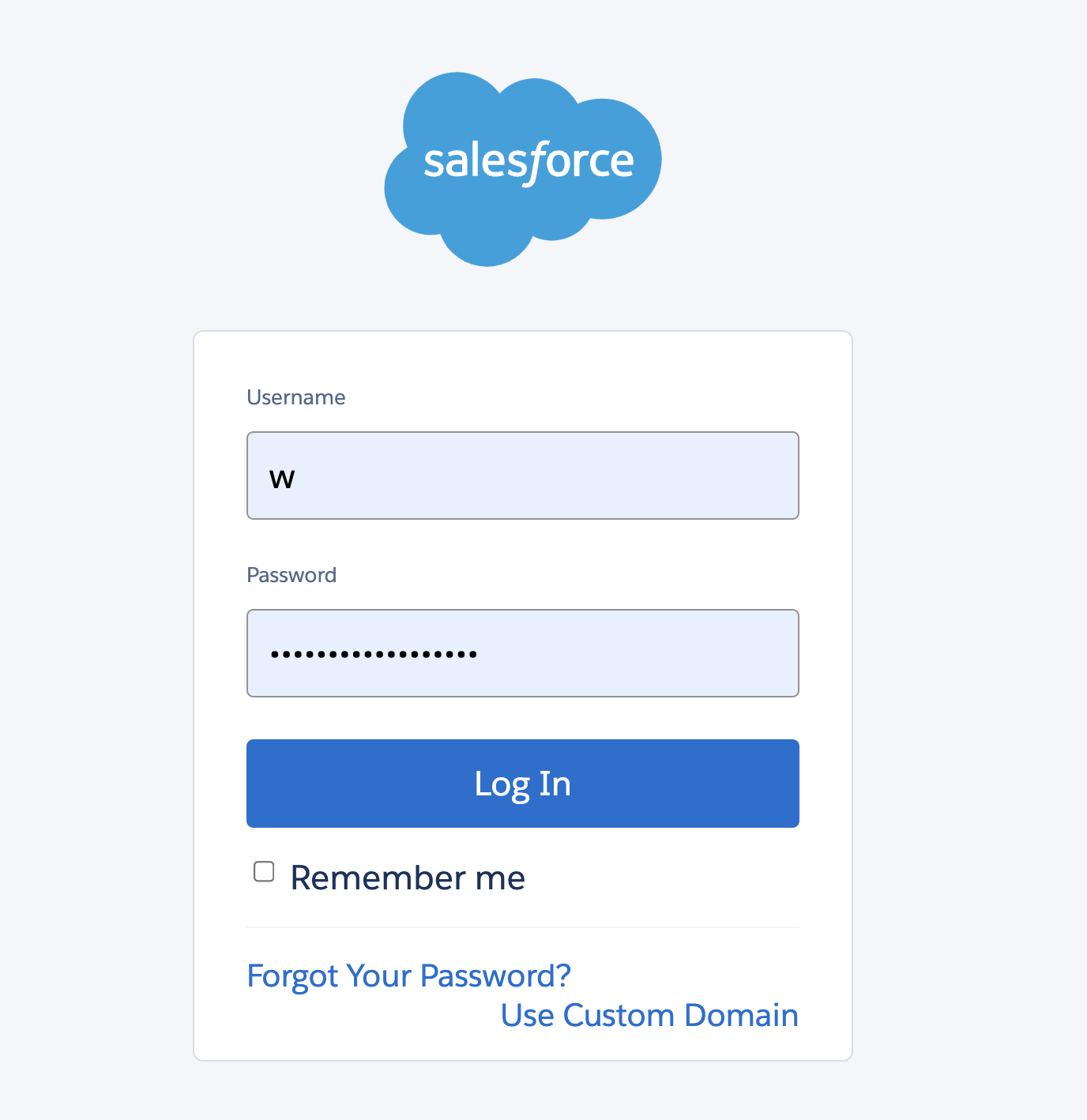 Log in to your Salesforce account
Click Log In to complete the setup.
If you see an error such as OAUTH_APPROVAL_ERROR_GENERIC, Salesforce is restricting the Workato app because it isn't installed. A Salesforce admin must install the app in Connected Apps OAuth Usage or assign the Salesforce permissions. Refer to the OAuth restrictions section for details.
JWT bearer authentication
View JWT bearer authentication steps
JWT bearer authentication connects using a digital certificate that signs a JWT request. This differs from standard OAuth 2.0, which connects to a specific Salesforce account. Workato sends a JWT to the Salesforce OAuth token endpoint, where Salesforce processes the JWT and issues an access token based on prior approval of Workato in Salesforce.
JWT connections can perform actions on behalf of a user you specify using the On-behalf-of-user email field. Contact your Workato Customer Success Manager to enable this feature.
Refer to the Roles and permissions section and the Salesforce JWT documentation to configure scopes granted by JWT.
Complete the following steps to connect to Salesforce using JWT bearer authentication:
Click Create > Connection or press C twice.
Search for and select Salesforce on the New connection page.
Provide a name for your connection in the Connection name field.
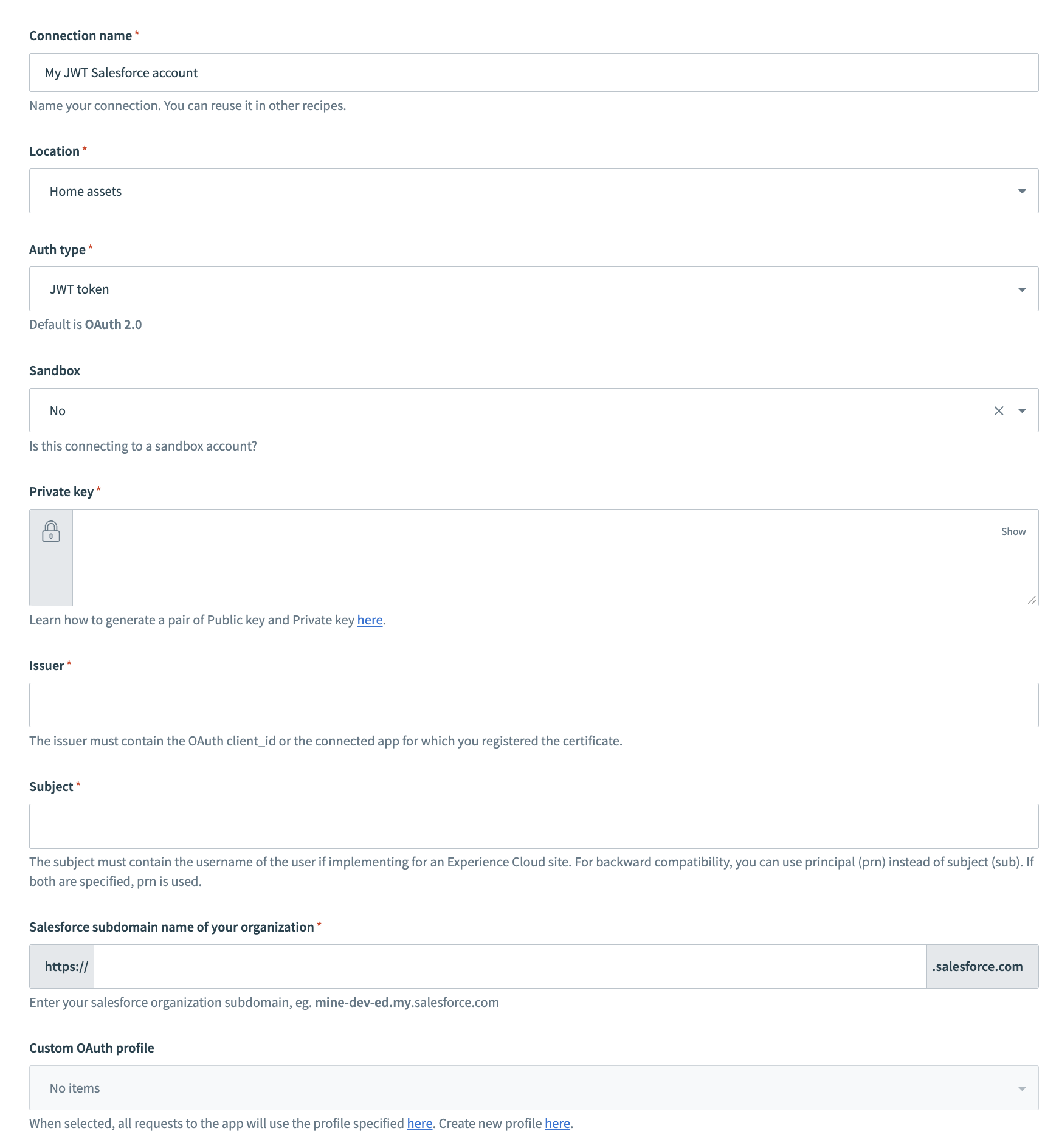 Configure Salesforce JWT Bearer connection
Use the Location drop-down menu to select the project where you plan to store the connection.
Use the Auth type drop-down menu to select JWT token as the authentication method.
Use the Sandbox drop-down menu to specify whether the Salesforce account is a sandbox account.
Refer to the Salesforce Create a Private Key and Self-Signed Digital Certificate guide to create a private key and a digital certificate.
Refer to the Salesforce Create a Connected App in Your Org guide to upload your digital certificate to Salesforce.
Return to Workato and enter your Private key.
Enter the Issuer for the JWT connection. The issuer must contain the OAuth client ID of the connected app in Salesforce for which you registered the certificate.
Enter the Subject for the JWT connection. The subject must contain the username of the user you plan to authenticate as. This should contain the username of a valid Experience Cloud user if you're implementing for an Experience Cloud site. You can use principal (prn) instead of subject (sub) for backward compatibility. If both are specified, prn is used.
Enter your Salesforce Subdomain. For example, if your Salesforce URL is yourInstance.salesforce.com, the subdomain is yourInstance.
Optional. Use the Custom OAuth profile drop-down menu to select a custom OAuth profile for your connection. Refer to the Salesforce custom OAuth documentation for more information.
Click Connect.
Optional. Complete the following steps to connect to a Salesforce organization with a custom domain:
Click Use Custom Domain in the sign-in modal.
Enter your Custom domain, then click Continue.
Enter your Custom domain.
Enter your Salesforce Username and Password.
Log in to your Salesforce account
Click Log In to complete the setup.
How to use Salesforce Sales Explorer MCP server tools
Refer to the following sections for detailed information on available tools:
search_leads tool
The search_leads tool searches for leads matching the criteria you specify. Your LLM uses this tool when you need to find, list, filter, or retrieve leads by ID, status, source, owner, company, or date ranges.
Try asking:
Find leads from last week.Show me all open leads.Find leads from Acme Corp.Show me qualified leads assigned to me.Find leads from the trade show.Show me leads created this month.
search_accounts tool
The search_accounts tool searches for accounts matching criteria you specify. Your LLM uses this tool when you need to find, list, filter, or retrieve accounts by ID, name, type, industry, owner, or parent account.
Try asking:
Find accounts in the technology industry.Show me all customer accounts.Find Acme Corp account.Show me prospect accounts owned by Sarah.Find child accounts of Acme Corp.Show me accounts created this quarter.
search_contacts tool
The search_contacts tool searches for contacts matching criteria you specify. Your LLM uses this tool when you need to find, list, filter, or retrieve contacts by ID, name, account, title, email, or owner.
Try asking:
Find contacts at Acme Corp.Find Jane Smith in Salesforce.Show me all VP-level contacts.Find contact with email [email protected].Show me contacts owned by John.Get Jane Smith's contact information.
search_opportunities tool
The search_opportunities tool searches for opportunities matching criteria you specify. Your LLM uses this tool when you need to find, list, filter, or retrieve opportunities by ID, name, account, stage, close date, amount, or owner.
Try asking:
Find deals closing this quarter.Find the Acme Corp renewal opportunity.Show me all opportunities in negotiation stage.Find deals over $100k.Show me opportunities I'm working on.Show me deals closing next month.
search_tasks tool
The search_tasks tool searches for tasks matching criteria you specify. Your LLM uses this tool when you need to find, list, filter, or retrieve tasks by ID, subject, status, priority, due date, owner, or related records.
Try asking:
Find my tasks for this week.Find tasks about contract review.Show me open tasks.Show me high-priority tasks.What tasks are due today?Show me tasks for the Acme Corp account.
search_products tool
The search_products tool searches for products in the Salesforce product catalog. Your LLM uses this tool when you need to find, list, or retrieve products by ID, name, product code, or active status.
Try asking:
Find products in our catalog.Find the Enterprise subscription product.Find product SKU-12345.Show me software products.Show me discontinued products.What products can I add to this opportunity?
upsert_lead tool
The upsert_lead tool creates a new lead if it doesn't exist, or updates an existing lead if you provide the lead ID. Your LLM uses this tool when you need to create a new prospect or update lead information.
Try asking:
Create a lead for Josh Hernandez at Acme Corp.Log this person as a lead.Update the lead status to Qualified.I met Jade Anderson from TechCo at the conference - create a lead.Assign this lead to Sarah.Update the lead - they're interested in the enterprise plan.
upsert_account tool
The upsert_account tool creates a new account if it doesn't exist, or updates an existing account if provided with account ID. Your LLM uses this tool when you need to create a new company record or update account information.
Try asking:
Create an account for Acme Corp.Update Acme Corp's industry to Technology.Add this company to Salesforce.Update the account - their revenue is $50M.Reassign this account to John.
upsert_contact tool
The upsert_contact tool creates a new contact if it doesn't exist, or updates an existing contact if you provide the contact ID. Your LLM uses this tool when you need to create a new person record or update contact information.
Try asking:
Create a contact for Jane Smith.Update Jane's email address.Add John Doe as a contact at Acme Corp.Save this person's information as a contact.
upsert_opportunity tool
The upsert_opportunity tool creates a new opportunity if it doesn't exist, or updates an existing opportunity if you provide the opportunity ID. Your LLM uses this tool when you need to create a new sales deal or update opportunity information.
Try asking:
Create an opportunity for Acme Corp renewal.Update the Acme deal amount to $100k.Move this opportunity to Negotiation stage.Push the close date to end of quarter.Create an opportunity for what we just discussed.
upsert_task tool
The upsert_task tool creates a new task if it doesn't exist, or updates an existing task if you provide the task ID. Your LLM uses this tool when you need to create a to-do item or update task information, and can link tasks to leads, accounts, contacts, or opportunities.
Try asking:
Create a task to follow up with Acme Corp.Remind me to call them next week.Make a task for what we discussed.Create a task for this opportunity to send the proposal.Mark that task as completed.Push the task due date to Friday.
upsert_event tool
The upsert_event tool creates a new calendar event if it doesn't exist, or updates an existing event if you provide the event ID. Your LLM uses this tool when you need to schedule a meeting, call, or calendar activity with specific date and time.
Try asking:
Schedule a call with Acme Corp for tomorrow at 2pm.Put a meeting on my calendar for Friday at 10am.Move that meeting to next Tuesday.Schedule a demo for this opportunity on Wednesday.
add_opportunity_line_item tool
The add_opportunity_line_item tool adds a product line item to an existing opportunity. Your LLM uses this tool when you need to add products or services to a sales deal.
Try asking:
Add the Enterprise subscription to this opportunity.Add 5 licenses to the Acme deal.Add the product at $1000 per unit to this opportunity.Add the Professional Services package to the renewal deal.
retrieve_semantic_model tool
The retrieve_semantic_model tool retrieves schema information for a Salesforce object you specify, including field names, field types, field labels, relationships to other objects, and field-level permissions. Your LLM uses this tool when you need to understand object structure before building queries or creating records.
Try asking:
What fields are available on the Lead object?Show me the schema for Opportunity.What are the field types for Account?Get the object structure for Contact.
execute_soql_query tool
The execute_soql_query tool executes SOQL queries in Salesforce. Your LLM uses this tool after reviewing semantic models to build custom queries that answer specific questions about your Salesforce data.
Try asking:
Query all opportunities with amount greater than $50k closing this quarter.Find accounts in the technology industry with annual revenue over $10M.Get all contacts associated with closed-won opportunities.Query tasks due this week for my team members.
Getting started
View and manage your MCP server tools in the Overview page Tools section. Tool management provides the following capabilities:
TOOLS MUST BE STARTED
Your LLM can only access active tools in your MCP server connector.
Last updated: