# Stop an on-prem agent
The Workato on-prem agent maintains an active connection between your network and Workato's On-prem group dashboard (opens new window). You may need to temporarily disable this connection when restarting or upgrading the agent.
An on-prem agent process is typically stopped through a SIGTERM. Use one of the following methods to send this signal to an agent:
- Use the
./bin/shutdown.shshutdown script that comes with the on-prem agent. - Run the
kill -s TERMcommand on the running agent.
The agent performs a graceful shutdown automatically. This ensures the agent terminates safely, preventing disruption to pending requests and avoiding job failures or data loss. The default shutdown timeout is 30 seconds.
# Disable an agent in Workato
We recommend that you disable the agent in Workato before stopping it to prevent new actions from routing to it.
Complete the following steps to disable an agent in Workato:
API INTEGRATION
Alternatively, use the Developer API or Embedded API to update the agent's enabled status to false.
Sign in to Workato.
Go to Tools > On-prem groups and select the on-prem group that contains the agent you plan to disable.
Confirm there is an active backup agent in the group to prevent recipe disruption. Refer to Add an agent if you need to create a backup agent.
Go to the agent's Version column and click ... (ellipsis).
Click Disable.
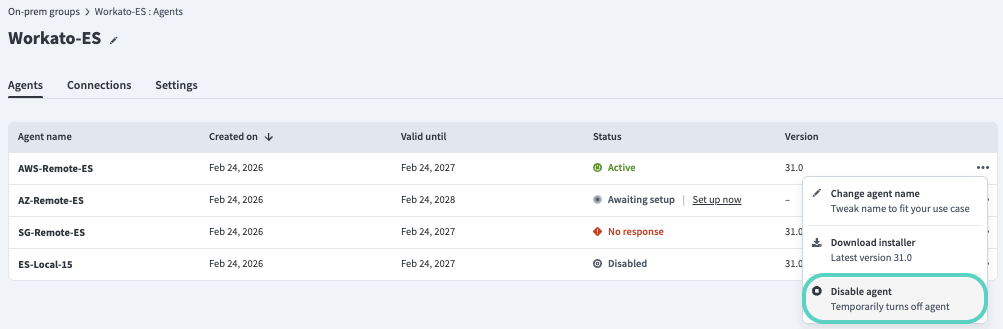 Disable an agent in Workato.
# Stop an agent on Linux, Mac, or Docker
Run the shutdown script using the following command to initiate a graceful shutdown on Linux, Mac, or Docker:
./shutdown.sh
The script sends SIGTERM to gracefully terminate the agent process. The agent terminates after the configured timeout if the shutdown hasn't completed.
PID FILE CREATION
The agent doesn't create a PID file during startup by default. Start and stop the agent with the following options if you encounter an error due to a missing PID file:
./run.sh --pid-file=/var/run/workato-agent/workato-agent.pid
./shutdown.sh --pid-file=/var/run/workato-agent/workato-agent.pid
# Optional arguments
The shutdown script supports the following optional arguments:
| Argument | Description |
|---|---|
| --pid-file | Specifies the path to the PID file, which contains the agent process ID. This defaults to /var/run/workato-agent/workato-agent.pid. |
| --pid-file-purge | Purges the PID file before shutdown. |
| --kill-signal | Specifies the signal to use. This defaults to TERM. |
| --help | Displays a list of all accepted arguments. |
The following examples show how to run the shutdown script with optional arguments:
./shutdown.sh --pid-file=/var/run/workato-agent/workato-agent.pid --pid-file-purge
./shutdown.sh --kill-signal=TERM
./shutdown.sh --help
# Stop an agent on Windows
Complete the following steps to stop an agent as a Windows service or using a command, depending on your setup:
# Reconnect an agent to Workato
Agents lose their connection to Workato when they stop. Complete the following steps to reconnect an agent to Workato:
API INTEGRATION
Alternatively, use the Developer API or Embedded API to update the agent's enabled status to true.
Refer to one of the following sections to start the agent on the host machine:
Go to Tools > On-prem groups and select the on-prem group that contains the agent you plan to reconnect.
Go to the agent's Version column, click ... (ellipsis), and then select Enable agent.
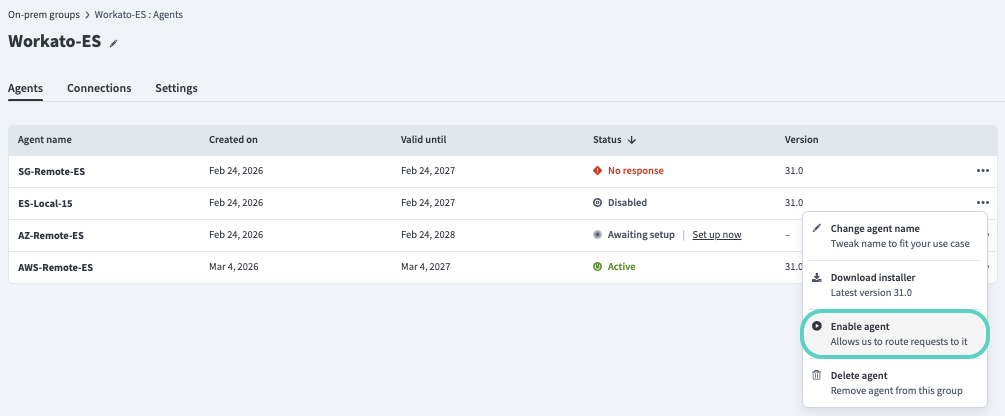
Workato sends a request to your on-prem agent to establish a connection. A successful connection request returns an Active status.
Last updated: 3/25/2026, 6:35:24 PM