# User confirmation
Genies can take actions in real systems, such as creating tickets, submitting requests, updating records, or provisioning access. This can cause problems if the genie acts on LLM-constructed information with plausible but wrong parameter values. This is called parameter hallucination.
User confirmations are the safeguard that help prevent LLM parameter hallucinations from being inserted into your records and workflows. Your genie shows you the skill it's calling and the parameter values it's prepared when user confirmation is enabled on a skill. Your genie waits for you to explicitly approve the action before executing the skill. No action happens until you approve it.
Parameter hallucination is common in the following scenarios:
- A conversation contains ambiguous information. A user mentions two ticket numbers in the same conversation. The genie uses the wrong ticket as the input to an update skill.
- A required field wasn't clearly specified. A user said
book leave starting Mondaywithout specifying an end date. The genie infers an end date based on context. - The LLM applies general knowledge instead of retrieved data. A user asks to create a ticket in
the usual project. The LLM uses a project name from its training data or earlier in the conversation rather than verifying the correct project.
# User confirmation vs. Business approvals
User confirmations aren't the same as Business approvals. User confirmations let you review and approve skill execution before it happens. Business approvals route the approval to a different person, such as a manager, application owner, or approver defined by the organization's governance policy. The two mechanisms serve different purposes and can be used together. For example, you confirm the parameters of your request, and a manager then approves whether the request should proceed.
# Confirmation steps
Your genie pauses and presents a confirmation step rather than calling the skill immediately when it decides an action is appropriate.
The confirmation step shows the user:
- The action that is about to be taken
- The parameter values the genie has prepared for the skill inputs
- A request for explicit confirmation before proceeding
You can review the presented parameters, confirm or correct the values, and either approve the action or deny the action.
# Configure user confirmations
User confirmations are configured in the skill input settings in Agent Studio.
Complete the following steps to configure user confirmations in a skill recipe:
Refer to Create a new skill for complete skill configuration steps.
Sign in to Workato.
Go to AI Hub > Genies.
Select the genie where you plan to add the skill.
Go to the Enterprise skills section and click + Add.
Select Skill.
Select New skill.
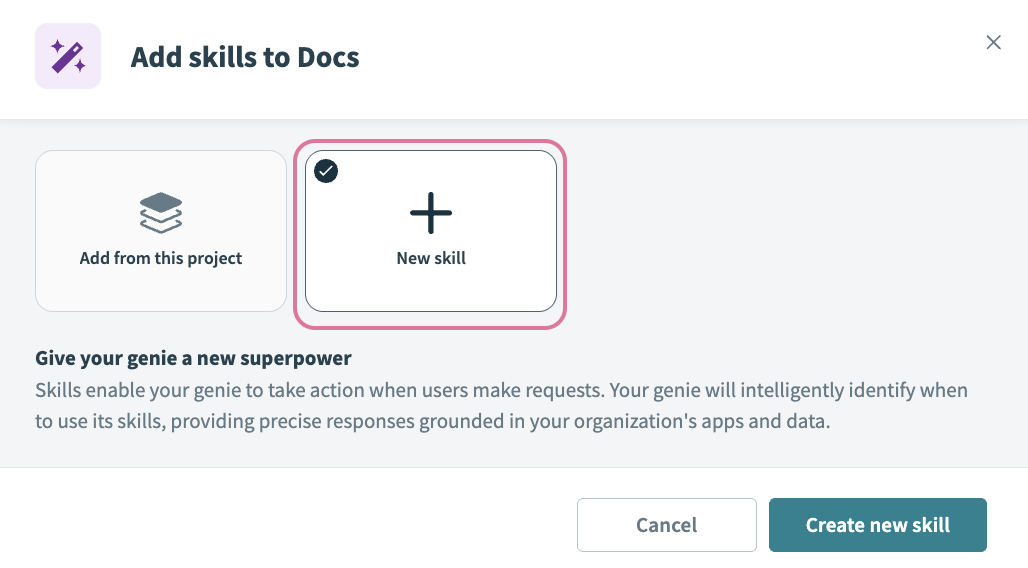 Select New skill
Click Create new skill.
Provide a name for your skill in the Skill name field.
Use the Location drop-down menu to select a location for your skill recipe.
Click Start building. The recipe editor opens with the Start workflow trigger and Return response action automatically selected.
Use the Require user confirmation before executing skill? drop-down menu to select Yes.
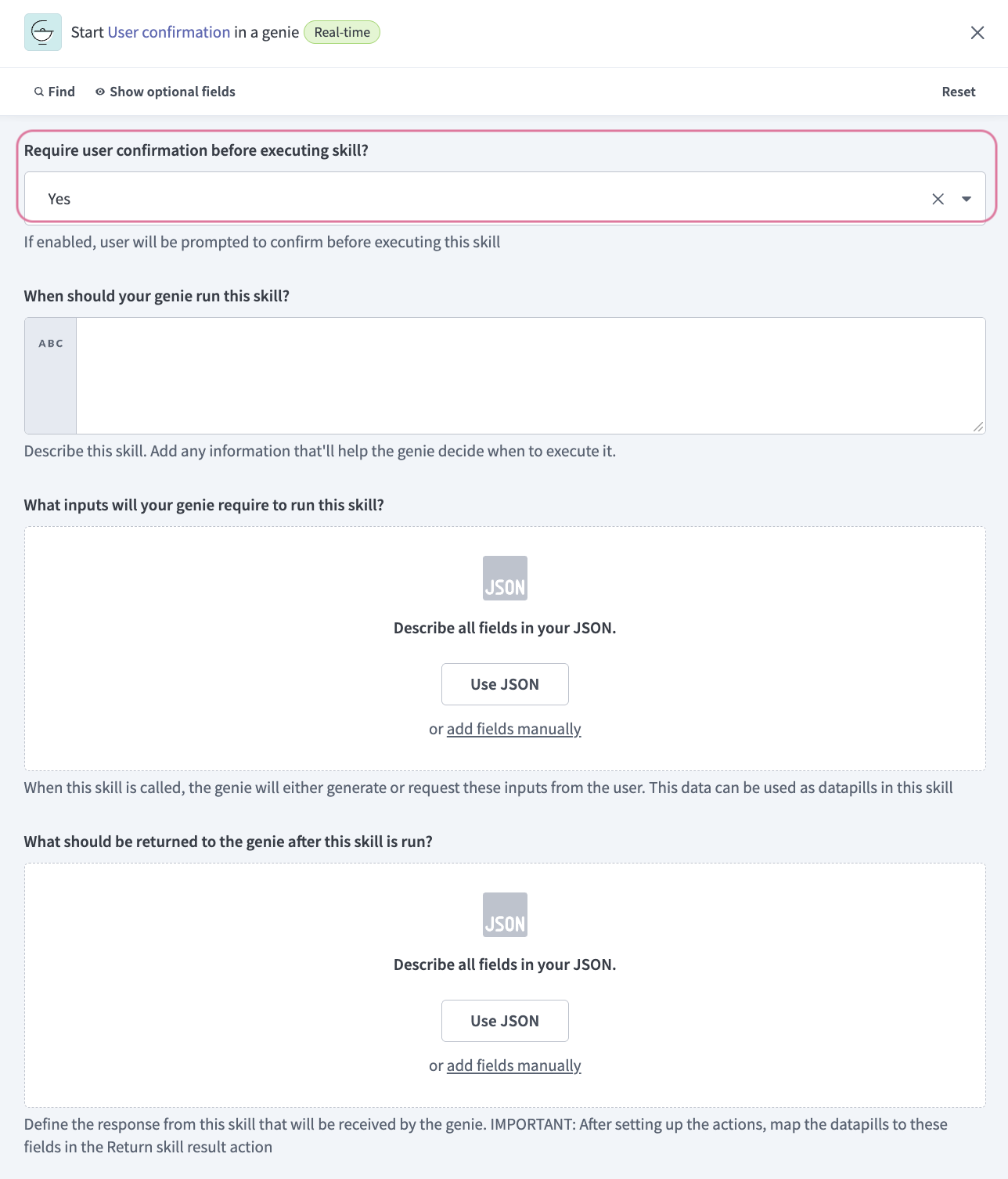 Use the Require user confirmation before executing skill? drop-down menu
Provide a description for your skill workflow in the When should your genie run this skill? field. The genie uses this description to decide when to trigger this workflow.
Go to the What inputs will your genie require to run this skill? section and click Use JSON or Add fields manually to provide a description of the schema recipe parameters.
Go to the What should be returned to the genie after this skill is run? section and click Use JSON or Add fields manually to provide a description of the schema response.
Click Save.
# Best practices
Use the following guidance when deciding whether to enable user confirmation on a skill:
# Recommended
- Enable confirmation on all write operations: Enable user confirmation for actions that create records, update records, delete or close records, submit requests, provision or revoke access, or send communications on behalf of a user.
- Pair user confirmation with a Job description instruction: The Job description instruction tells the genie to collect all required information and present a summary before attempting to call the skill. This produces a well-informed confirmation step.
- Collect all required inputs before confirmation: You may see empty or inferred fields if the genie presents a confirmation step before it has collected all required inputs. Instruct the genie in the Job description to verify all required inputs first so you can approve with confidence.
- Test the confirmation experience with a non-builder account: Confirmation step behavior can only be tested through a real user conversation in the chat interface, as Test mode doesn't replicate the confirmation flow. Verify that parameter values are human-readable, not internal IDs or system codes.
- Calibrate confirmation to the risk of the action: Irreversible actions, actions affecting other users, and actions with significant downstream consequences should always have user confirmation enabled. Examples include provisioning access, submitting financial requests, and escalating incidents.
# Not recommended
- Don't enable confirmation on read skills: Enabling confirmation on every skill forces users to approve every data retrieval. This adds friction without preventing any meaningful risk.
- Don't use skills that require user confirmation in headless automation flows: User confirmations aren't available when a skill is called through Assign task to genie. There isn't a user present to approve the confirmation, so the step won't execute.
# Limitations
User confirmations have the following limitations:
- Agent orchestration can't be used with user confirmation. You can use two separate skills if a use case requires both automated invocation, such as Assign task to genie, and user confirmation. For example, create one skill for conversational use with user confirmation, and a second skill for automated use with a different approval mechanism, such as Business approvals.
Last updated: 4/8/2026, 12:10:43 AM