# Workato GO Gong connector
Gong (opens new window) is a revenue intelligence platform that captures your customer interactions across phone, web conferencing, and email. Gong understands these interactions and delivers insights to help you make business decisions.
The Workato GO Gong connector enables you to index and search your Gong call recordings, transcripts, and metadata. This integration provides comprehensive access to sales call intelligence, including AI-generated summaries, key points, highlights, speaker analytics, and full transcripts. The Workato GO Gong connector includes the following capabilities:
- Full-text search across call transcripts and metadata
- Participant-based permissions for secure access control
- Incremental sync support for efficient updates
- Support for call and user data synchronization
Read permissions are automatically generated for call participants. Permission use both email addresses and Gong user IDs to identify participants. Document visibility is marked as SPECIFIC_PEOPLE_AND_GROUPS automatically.
# API version
The Gong connector uses the Gong API v2 (opens new window).
# Prerequisites
Ensure you have the following access and permissions before you set up the Workato GO Gong connector:
- Active Gong account with API access
- Workato account with appropriate permissions
- Workato API token
- The connection ID for an active Gong connection configured in Workato
- Admin access to configure the connector in Workato GO
- Database and Redis connections configured
REQUIRED SUPPORT FOR CBOR CUSTOM ACTIONS
The Workato GO Gong connector uses the Workato Concise Binary Object Representation (CBOR) API for efficient data transfer. Ensure your Workato environment supports CBOR-based custom actions.
# How to connect to Gong on Workato
Complete the following steps to create a Gong connection in Workato:
Enter a Connection name to identify your Gong account within Workato.
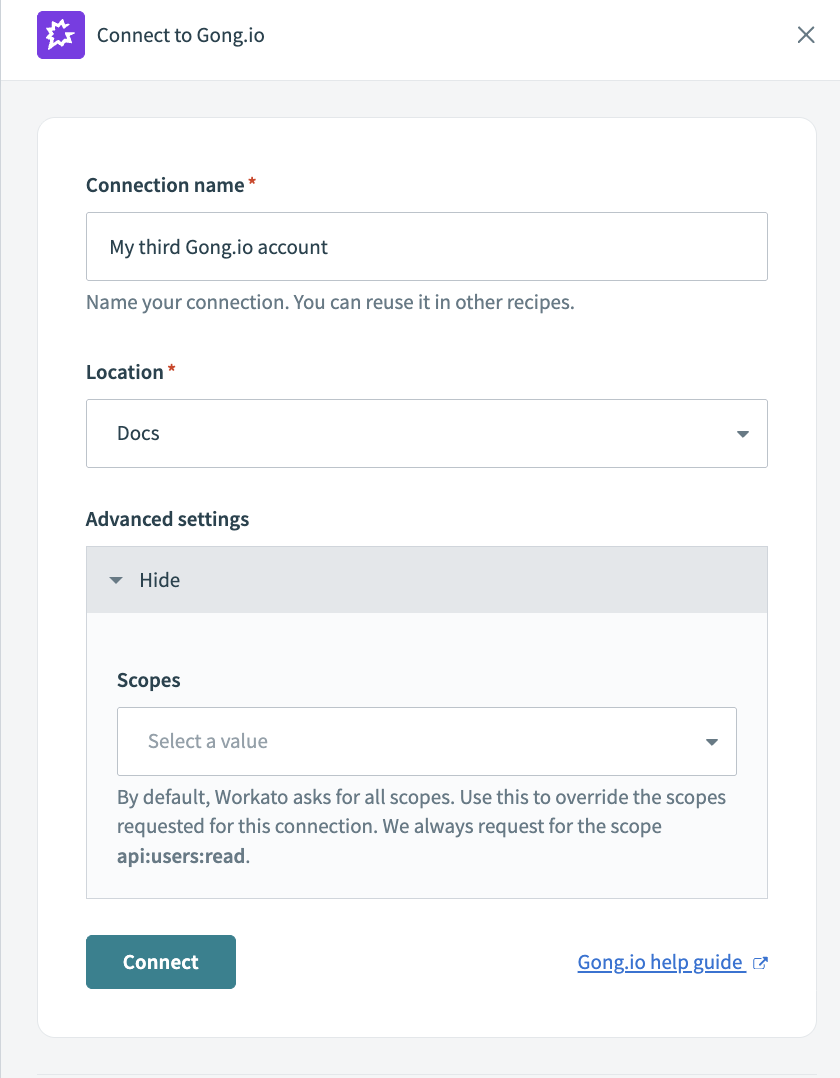 Gong connection setup
Use the Location drop-down menu to select a location for your connection.
Click Connect. The Gong sign-in window displays.
Enter your Gong account username and password. A window opens displaying a summary of the access Workato is provided with for the connection.
Click Accept to complete the connection setup.
# Configure Gong connector in Workato GO
You must have Admin permissions in Workato GO to perform the steps in this section.
Complete the following steps to configure your Gong connector in Workato GO:
Sign in to your Workato GO account as an admin.
Expand the Admin menu in the sidebar and click Data sources.
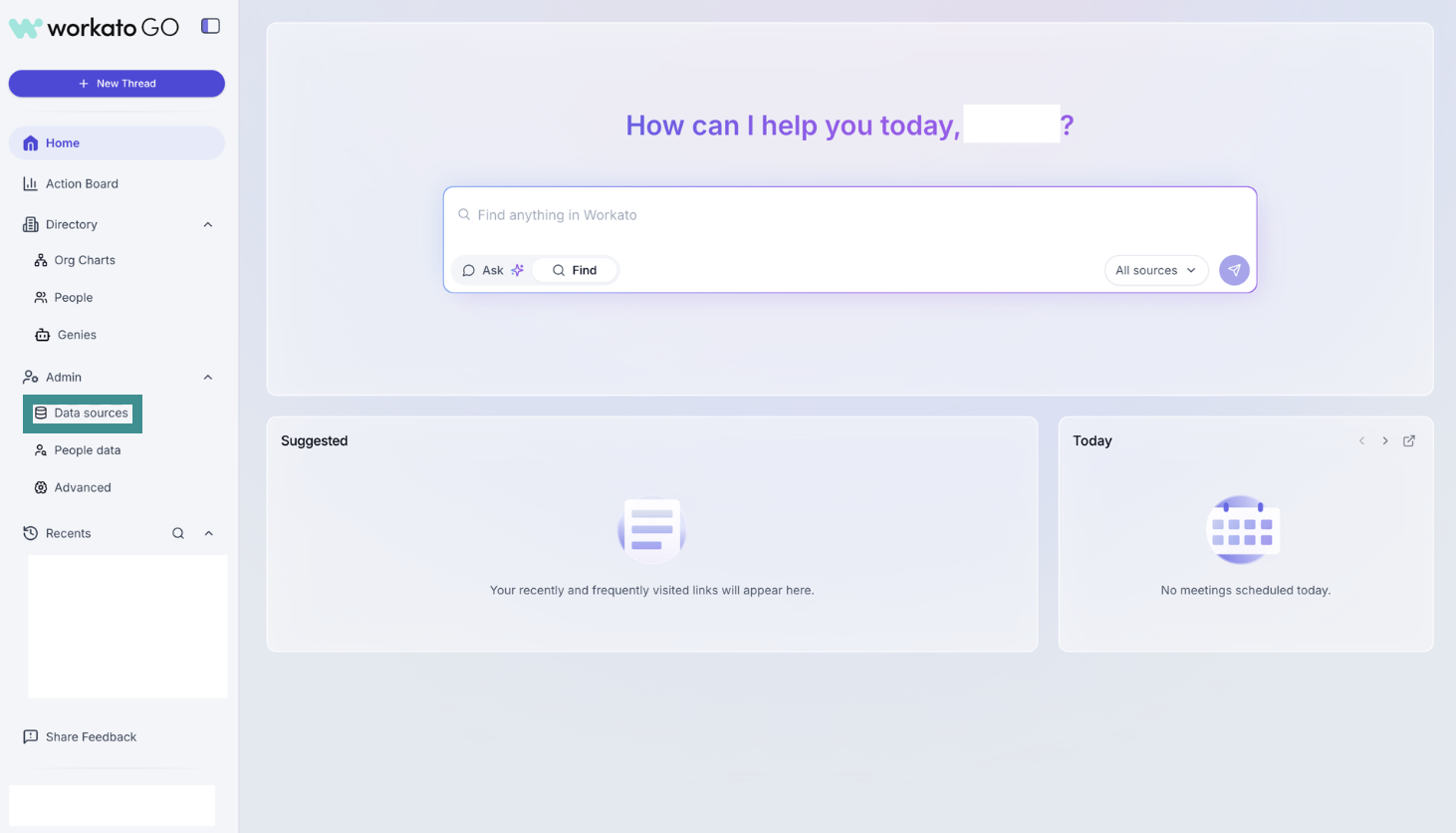 Go to Admin > Data sources
Click Add Data Source. The Add Data Source page displays.
Select Gong from the list.
Provide the following credentials:
{
  "credentials": {
    "token": "your-workato-api-token",
    "connection_id": "your-gong-connection-id"
  },
  "additional_options": {
    "base_url": "https://preview.workato.com",
    "objects": ["Call", "User"],
    "incremental": false,
    "force_full_crawl": false
  }
}
# Verify Configuration
Complete the following steps to verify your Gong configuration in Workato GO:
Click the Test Connection button to test the connection.
Verify that both Call and User objects are accessible.
Review and verify the initial sync setting.
# Gong trigger and actions
The following Gong trigger and actions are supported:
- New call (real-time)
- Add call
- Add call media
- Create content share engagement event
- Create content view event
- Create custom action event
- Get call by id
- Search aggregated user data
- Search call scorecards
- Search call transcripts
- Search calls
- Search users
Refer to the Workato Gong connector documentation for more information on Gong triggers and actions.
Last updated: 1/12/2026, 8:20:30 PM